Clipping software for Windows

OBS & Streamlabs
clips, on cue.

Clip That saves OBS Studio and Streamlabs Desktop replays when you say “clip that” or press Ctrl+Alt+C. Review and trim your gaming clips, edit English subtitles, and export an MP4 to share.

Windows 10/11 · 64-bit preview · OBS + Streamlabs. Sign in before your first session. Previous Core downloads for Windows & Linux remain below.

Real gameplay, ready to clip
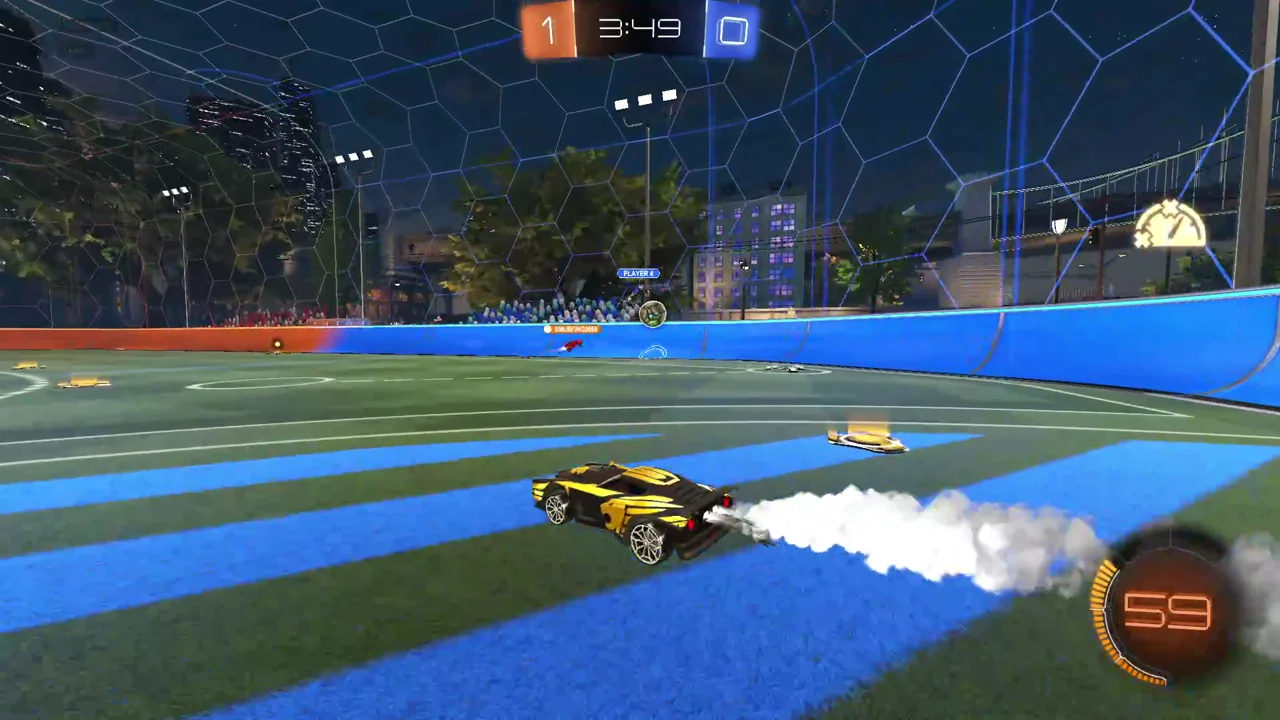
Real Rocket League gameplay from the recorded Clip That demo source

Real Rocket League gameplay · Framing preview. Watch the demo below to see Clip That in action.

Wait, did anyone clip that?Next time, you’ll have an answer.

Here’s how it works

From replay to ready

Save. Frame. Export.

See Clip That save an OBS replay, frame it in 9:16, and export a vertical MP4.

Read the demo transcript

Got a good moment? Hit Mark Clip, and it's saved.

There's your clip, right in the library.

Now, let's make it vertical. Just slide the crop to keep the action in frame.

Hit Export. And that's it. Your clip's ready to share.

Clip That. Free open beta.

Three steps, when you’re ready

Save it now.
Edit it after the match.

01 While you’re playing

Catch the good part.

Choose OBS or Streamlabs, run capture setup, and say “clip that” when it happens. Or use Mark clip or Ctrl+Alt+C. Already recorded it? Import your video and describe the moments you want.

OBS + Streamlabs, or a finished recording
02 After the session

Watch it back.

In Recordings, choose Find highlights, describe the moment, and select a target length. Review the suggestions and adjust their timing. In Library, keep, cut, and rate your saved clips.

Keep / Cut + star ratings
03 Before you share

Keep the setup. Cut the dead air.

Drag the timeline handles to trim, preview your selection full screen, and choose the framing. Generate and edit English subtitles on your PC, then export a separate MP4. Export captions as a selectable track or burn them into the picture. Your original stays intact.

Your original stays intact

What you get with Clip That

From “clip that”
to “watch this.”

Save the moment, watch it back, and make the edit. Your recordings and clips stay on your computer.

Native Windows preview

Clip That

Capture and editing tools for the play you want to watch again. Start with OBS or Streamlabs, or bring in a recording you already have.

Get Clip That

The tools you’ll reach for

  • Save OBS or Streamlabs replays by voice, button, or Ctrl+Alt+C
  • Describe what you want to find in a finished recording
  • Keep, cut, and rate the clips you want to come back to
  • Trim with a thumbnail timeline, preview the selection, and undo timing edits
  • Edit English captions and export them as a selectable track or burn them into the picture
  • Export in Original, 9:16, 1:1, or 16:9. Keep the whole picture or crop to fill.

Sign in online first. Local tools can work during a temporary outage with a remembered session; new AI searches need an online account check. Sessions can expire or be revoked.

A little help getting started

Let’s get your
first clip saved.

Set up OBS Studio or Streamlabs Desktop, save a replay with your voice, and prepare your gaming clips for sharing.

Try the framing

Keep the action in view.

Compare frame shapes and move the crop on a real gameplay still. Nothing gets uploaded.

Try a crop before you downloadStill-image preview

This preview uses one 16:9 gameplay still, not a video editor. Original and 16:9 show the same full picture for this sample. In Clip That, position a fixed crop and review your whole clip before exporting an MP4; the crop does not follow the action automatically. The still does not preview captions. No files are uploaded or shared from this example.

The latest Windows build

Get the preview.
Save a test clip.

Get the latest published Windows release. The installer includes the local video tools and English speech model. Sign in, choose OBS or Streamlabs for live capture, or start with a finished recording.

This is a development preview. AI recording analysis uses your signed-in Clip That account, with up to three analyses per account per UTC day. No API key setup is needed. The previous Core downloads remain below. The current app is Windows x64 only. Previous Linux Core is a separate older app; Mac and ARM downloads aren’t available here.

Latest release · Windows 10/11 · 64-bit

Clip That for Windows.

Latest Windows installer · automatic updates

Download for Windows

Windows installation guide and first clip →

Download and run the installer. Video tools and the English speech model are included (about 300 MB). Setup installs the Microsoft C++ runtime if it is missing, which may need internet access and a Windows permission prompt. Installed copies check for updates automatically at launch; use Restart to update or let the update apply when the app closes. If you’re upgrading from Clip That 0.6.x (Inno Setup), uninstall it first; that uninstall keeps your clips, settings, and sign-in. The previous Core app is separate: back up your clips before uninstalling it and don’t assume its library or settings will transfer. See the Windows installation guide.

Self-signed Windows release. Windows may still show Unknown publisher or SmartScreen warnings; the signature does not establish public publisher trust. Local capture, editing, and account-based AI analysis are available. No API key setup is needed.

Previous Core downloads

These are the previous app, with separate data and update channels. They do not include the current Windows app or its new features. These guides describe the current Windows app.

Windows · 64-bit

Core for Windows.

Checking the latest Windows release…

This Windows preview installer is unsigned.

Linux · x86-64 AppImage

Core for Linux.

Checking the latest Linux release…

Before you jump in

A few questions you might have.

What do I need to get started?Windows + OBS or Streamlabs

Use Windows 10/11 on a 64-bit x64 PC. For live replay capture, install OBS 28 or later or Streamlabs Desktop. Choose Capture app in Home → Capture setup & options, then run automatic setup. You can import a finished recording without a capture app. The current app has no Mac, Linux, or ARM release; the separate previous Linux Core download remains available below.

For the latest Windows preview, download and run the single installer. Its local video tools and English speech model are included; Setup installs a missing Microsoft C++ runtime. Installed copies check for updates automatically and offer a restart when an update is ready. For previous Core downloads, extract the complete ZIP first: Windows Core needs its included runtime archive beside the installer; Linux Core uses the AppImage commands shown on its download card, including a fallback for systems without FUSE. Internet is needed for first sign-in. Previous Core automatic highlights can record a full session and need at least 2 GiB of free space in addition to download and extraction.

Do I need an account or an internet connection?Local tools + online AI

The app requires an online first sign-in with a verified email account on each device. A remembered session lets local tools work during a temporary network or service outage. New AI recording searches require an online account check; saved analysis results stay available locally. Expired or revoked sessions need sign-in again. Signing out removes saved credentials but keeps your library and settings. Signing in does not upload your desktop recordings or transcripts.

How do I save a replay in OBS or Streamlabs?Voice, button, or hotkey

Choose your capture app in Clip That, run automatic setup, and start capture. Let replay history fill, then say “clip that”, choose Mark clip, or press Ctrl+Alt+C. Wait for the clip to appear in Library and check its sound. Follow the OBS replay buffer guide or the Streamlabs clipping guide for setup and troubleshooting.

Can I make vertical clips for Shorts, TikTok, or Reels?Export a 9:16 MP4

Yes. Trim your clip, choose 9:16, then fit the whole picture or crop to fill. For captions that are always visible, turn on Burn captions into the picture. You can also export a selectable subtitle track, but some services may ignore it. Preview your MP4, then upload it yourself. See the vertical gaming video guide for framing and caption details.

Will it find every good moment?You make the final call

Highlight suggestions and local English captions need review. Speech, audio, and search availability depend on the recording and configured tools. Choose your keepers, check the words, and preview the export before sharing.

What stays private?Recordings, accounts, and usage data

Desktop recordings and clips stay on your computer until you choose to export or share them.

In the current Windows app, optional AI recording analysis sends the transcript, your description and a few sampled images through the signed-in Clip That service to OpenAI after its first-use disclosure. Video and audio files stay on your computer. The service keeps AI results for up to 24 hours so an interrupted request can recover without another analysis; saved results on your PC remain available. Your account has a shared allowance of three analyses per UTC day across devices. No API key setup is needed.

Clip That accounts use Firebase Authentication for email and password sign-in, verification, and password resets. The account service stores your email, display name, hashed session tokens, and short-lived hashed identifiers for request limits. Desktop recordings and transcripts are not uploaded by signing in. Signing out removes this device’s remembered offline access.

We count page views and download button clicks by page, broad source, device type, browser, and operating system. Anonymous counts use no persistent browser ID. If you allow visitor estimates, we store a random browser ID for up to 90 days and a session ID with a 30-minute inactivity window in your browser. The server stores hashed IDs to estimate visitors, visits, conversion, and new versus returning browsers. These estimates cover consenting browsers, not all people. Choose Analytics choices in the footer to withdraw permission and remove those browser IDs. We honor Do Not Track and Global Privacy Control for browser analytics. Installer and update file GET requests and HTTP failures are counted separately as anonymous server observations; byte-range requests and retries may count more than once and do not confirm completion or installation. We store no raw IP addresses, full user agents, full referrers, emails, recordings, or fingerprints in analytics. Short-lived salted network hashes limit event spam. Records are private to authorized owners, retained for up to 120 days and pruned in bounded batches as events arrive; old anonymous daily totals remain separately labeled. App reporting is separate from anonymous website and file-request counts.

The current Windows app sends basic product usage and crash reports to our Clip That PostHog project while signed in and online. Usage events include feature use, saved clip duration and source, daily-limit encounters, and explicit interest in Pro, linked to the verified account identifier with app version and environment. Editor progress reporting also records opens, imports, trim changes, and export attempts and outcomes using random session and operation IDs. These events go to PostHog and the authenticated Clip That service. Detailed editor receipt and session metadata expire after 30 days; aggregate daily totals contain no account or media content. Usage events do not include recordings, speech, prompts, file names, or exact trim positions. Crash reports are different: they can include exception messages and stack traces, which may contain file paths or other diagnostic context. Pending crash reports are stored locally for up to 30 days (at most 20 files) and retried on a later signed-in launch until accepted. Ordinary usage delivery is best effort. This reporting is separate from the previous Core reporting described below.

Star ratings can sync to your Clip That account. Help & feedback sends the title, message, report type, and diagnostic information shown in the app to the Clip That team; reports are private. Do not include passwords or other secrets in feedback.

Previous Core releases with automatic app usage reporting send app launches, activity, successful clip creation and completed local export-transfer reports while signed in and online. Basic reporting in those releases has no consent prompt or off switch, including for profiles that previously disabled optional reporting. Reports contain a random profile identifier, operation identifiers, app version and operating-system platform. The server stores hashed account and profile identifiers so one signed-in account can be counted across devices; usage reports do not include recordings, clips, transcripts, filenames, email addresses, display names or hardware identifiers. Activity is sent at most once per minute, with no offline backlog. Earlier optional-reporting releases still require opt-in. Our first-party usage records are retained for up to 120 days, subject to bounded cleanup and storage limits. We also use PostHog for Core product analysis: the account and profile hashes, event type, time, app version and platform may be sent to our Clip That project. We do not send account details, recordings, filenames, request headers or IP addresses to PostHog; forwarding disables geolocation and requires project IP discarding. PostHog retention follows its project settings. Forwarding is best effort, so the two systems can show different totals; missing reports do not prove an app was unused.

In the private admin workspace, authorized Clip That owners can match Core usage reports to your account’s email, display name and Firebase user ID. This shows when an account last reported app activity, how often it reports use, and its reported clip creation and exports. Email addresses and Firebase user IDs stay in the account service and private admin view; they are not added to usage reports sent to PostHog. An app report does not prove someone is online or actively working.

The signup form stores your email, signup time, and consent. New signups agree to Clip That beta and release updates. Earlier launch-only signups keep their original consent; this wording does not expand it. Emails are visible to the site owner, never to other visitors. We also keep short-lived hashed network identifiers to limit signup spam. Joining the launch list does not create an app account. Email support@clipthat.us.com for privacy questions or to ask us to remove your email from the launch list. Any future launch email will need to include an unsubscribe option.